
Porthole
Your Mac, in your pocket.
Private Screen Sharing for Mac, on iPhone and iPad. Built to feel like the app Apple never made.
App Store privacy label: Data Not Collected

Features
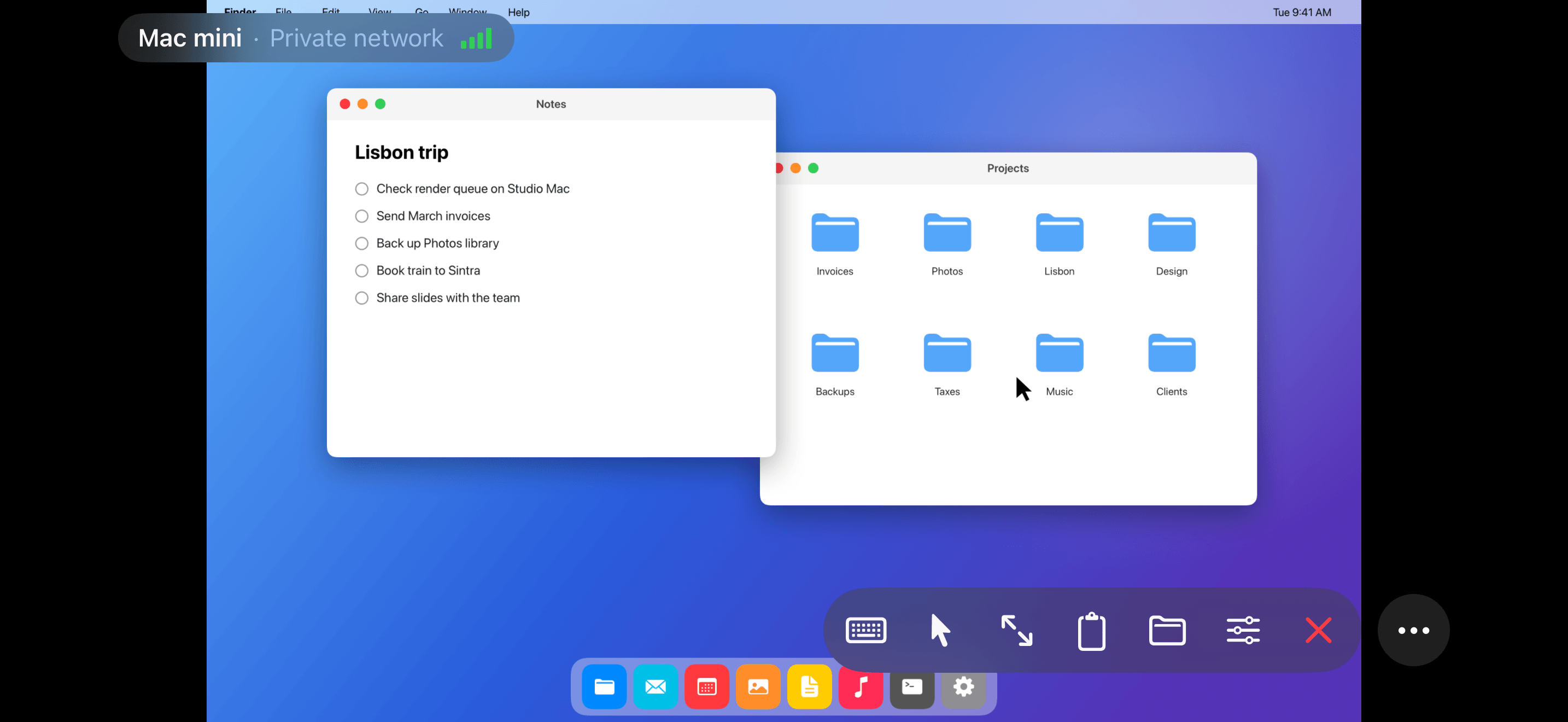
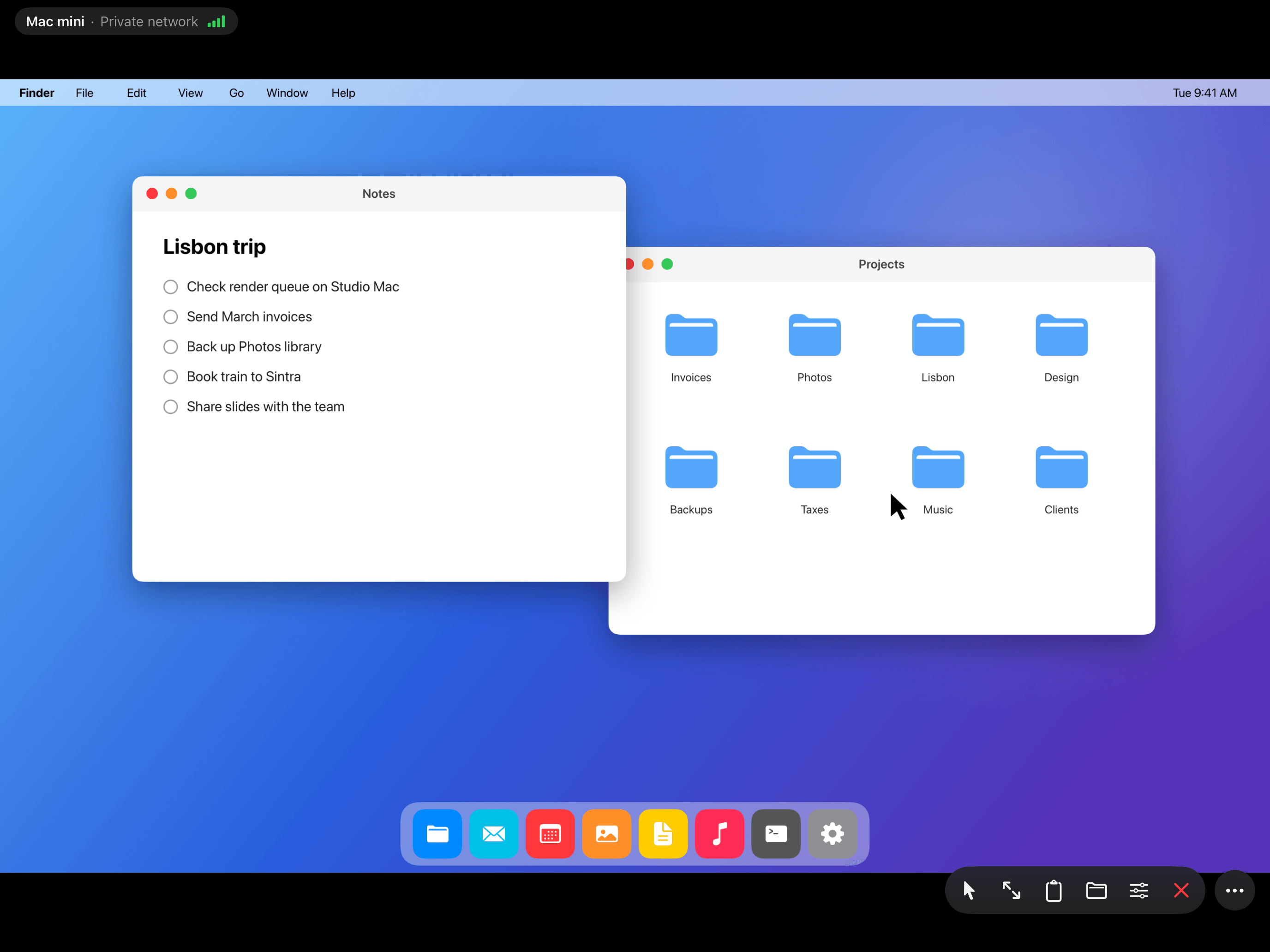
Everything you'd do at your desk.
Every Mac key.
esc, tab, ⌃, ⌥, ⌘ and the arrow keys sit right above the keyboard. Tap a key once for the next keystroke, or twice to lock it.

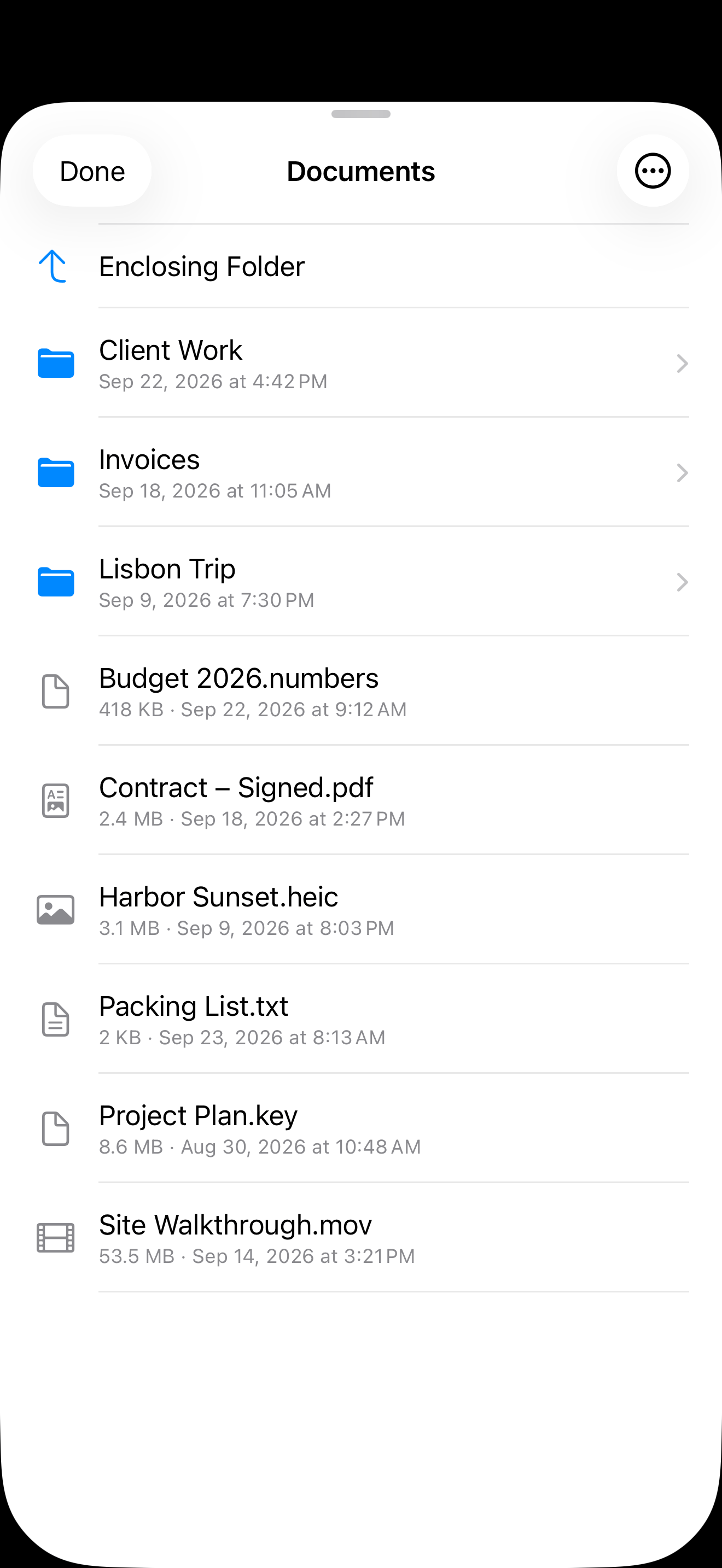
Your files, right here.
Browse the folders on your Mac and save any file to your iPhone.
Trackpad or touch.
Move the pointer like a MacBook trackpad, or switch to Direct Touch and tap exactly where you want to click.

Copy here, paste there.
Send your iPhone's clipboard to your Mac, or bring your Mac's clipboard back.
Finds your Macs.
Macs with Screen Sharing turned on show up on their own when you're on the same network. Add one with a tap.
Made for Dark Mode.
Every screen follows your iPhone's appearance. Sessions always use dark controls so they stay out of your way.
Privacy
No account.No cloud relay.No analytics.Just you and your Mac.
Connect over your home network, or from anywhere through your own VPN or an SSH tunnel. Your screen goes straight from your Mac to you. Passwords you choose to save stay on this device and are never backed up or synced.
App Store privacy label
Data Not Collected.
Porthole’s privacy label on the App Store says it plainly:
“The developer does not collect any data from this app.”
Nothing to install on your Mac.
Many remote-desktop apps put their own software on your Mac, with permission to record your screen and control your keyboard and mouse. Porthole uses the Screen Sharing built into macOS.
No company in between.
Many also connect you through their own servers and ask you to create an account. Porthole connects straight to your Mac, over your own network, your own VPN or an SSH tunnel.
Nothing sent to us.
No analytics, no advertising and no crash reporting service. We don’t run servers that your data could pass through.
Even better on iPad.
Connect a keyboard and trackpad, and it feels like sitting at your Mac.

Setup
Ready in minutes.
Porthole walks you through it, one step at a time.
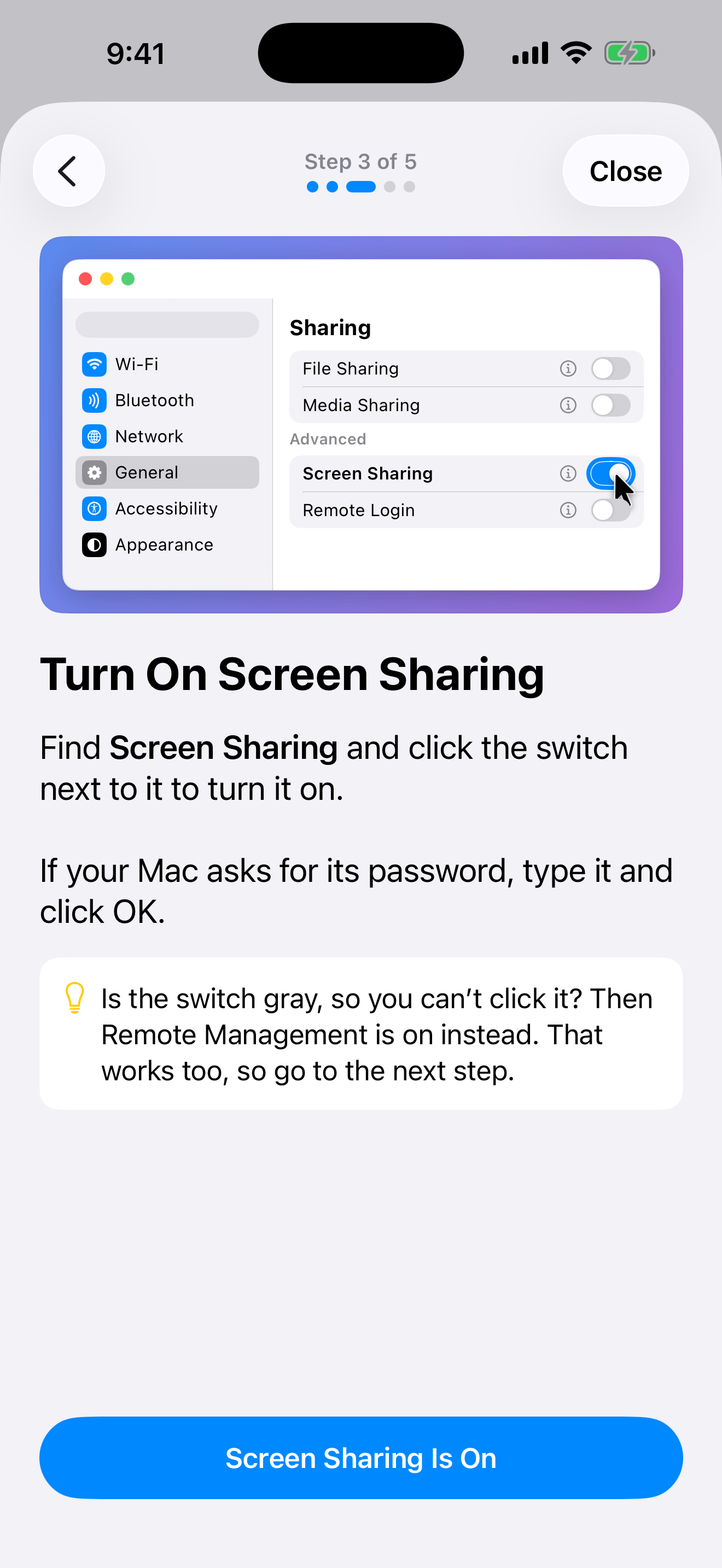
Turn on Screen Sharing
On your Mac, open System Settings, go to General › Sharing, and switch on Screen Sharing.
Add your Mac
Macs on your network appear in Porthole on their own. For anywhere else, type the Mac’s VPN address.
Sign in
Use the name and password of an account on your Mac, just like Screen Sharing on a Mac.

$9.99. Once.
No subscription. No account. Yours on iPhone and iPad.

Requires iOS 18 or later. Your Mac needs Screen Sharing turned on.